Passwordless login – email code (OTP)
Sign in to Skillhive with a six-digit code sent to your email. Follow the login steps and find help with common problems.
You can sign in to Skillhive with a six-digit, one-time code (OTP) sent to your email. There is no password to remember or reset.
Which login method do you use?
Staff SSO or AD account: select the staff login option and continue to your organisation's sign-in process. You do not need a Skillhive email code. This login method remains unchanged.
Email address and a Skillhive account: follow the steps below. This may also apply to external experts.
To sign in with an email code, you need a user account in the relevant Skillhive environment and access to the email inbox associated with that account.
How to sign in with an email code
Open your organisation's Skillhive address. Use the address provided by your organisation, for example
https://company.skillhive.com. Replace company in this example with your organisation's address.Choose to sign in with a Skillhive account. If the page has a separate staff login option, open the option for users who sign in by email. It may be labelled as an external expert login. In some environments, the email field is shown directly.
Enter the email address associated with your Skillhive account and select Send login code. The page displays a code field and a message saying that a login code is sent if an account exists for that address.
Open your email and copy the six-digit code from the message. Keep the Skillhive login page open.
Return to Skillhive, enter the code in the 6-digit code field and select Login. When the code is accepted, you are signed in to Skillhive.
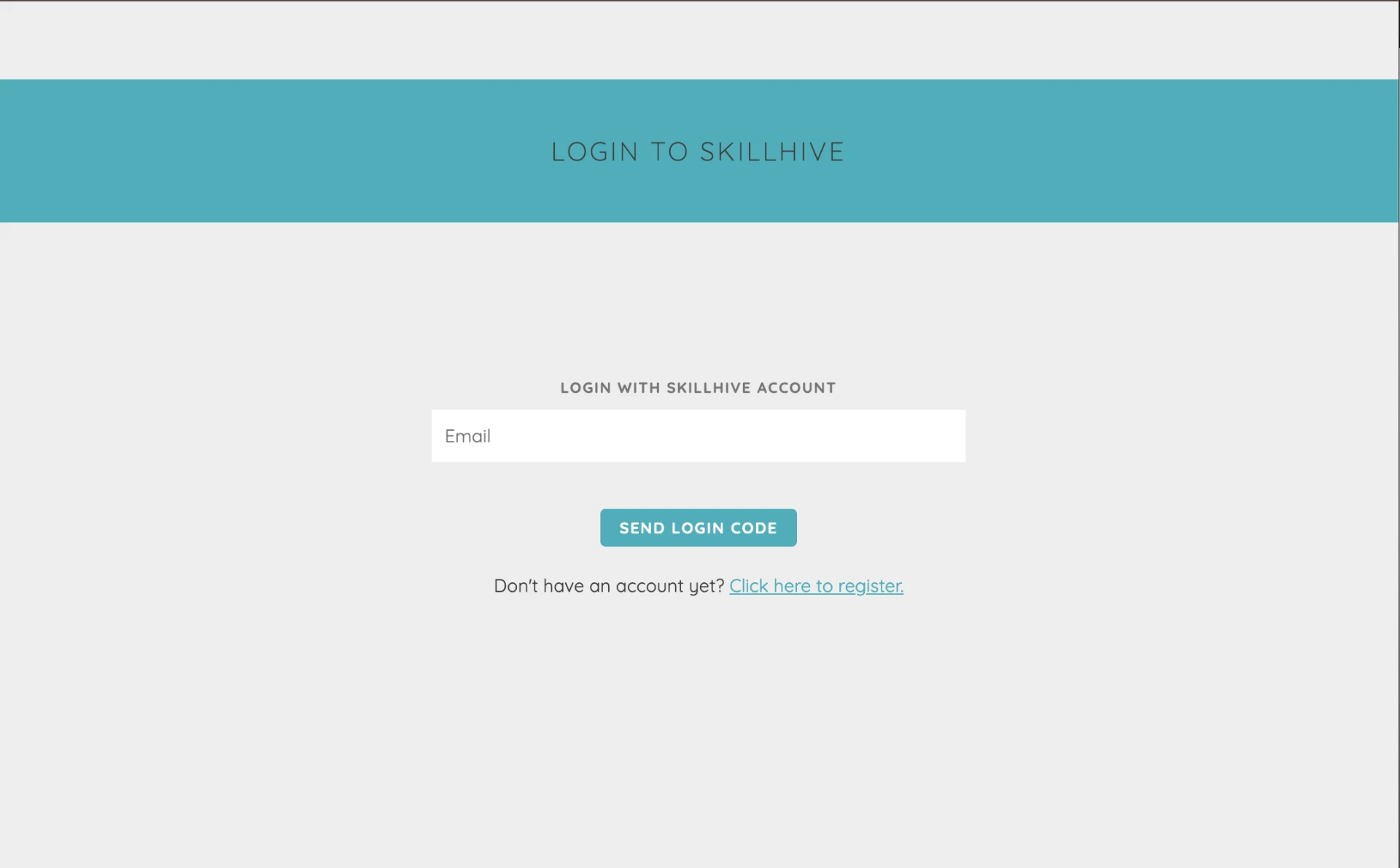
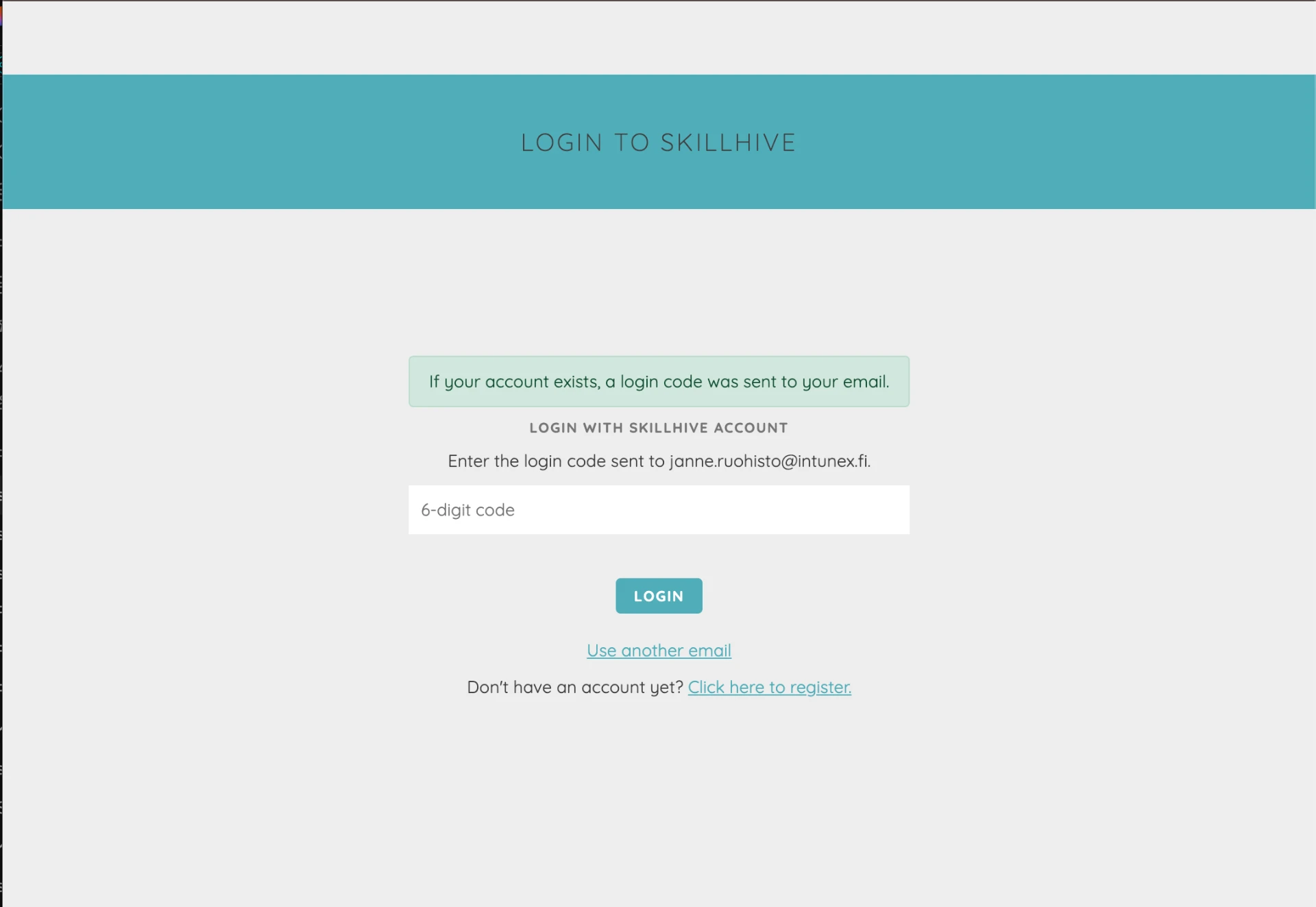
Your login code is personal. Do not share it with anyone.
If you cannot sign in
The login code has not arrived
Check your spam folder and allow a little time for the message to arrive.
Check that you entered the email address associated with this Skillhive account and opened the correct organisation's Skillhive environment.
If you mistyped the address, select Use another email, correct the address and request a code again.
If the code still does not arrive, or you are unsure whether you have an account, contact your organisation's Skillhive administrator.
The message about sending a code does not confirm that an account exists. Requesting a code does not create a user account.
The login code is not accepted
Check that you entered all six digits correctly and are using the code you received for this login. If you still cannot sign in, select Use another email to return to the email field and request a new code.
If the new code does not work either, contact your organisation's Skillhive administrator or Skillhive support. Contact details are at the end of this guide.
I cannot access my account's email inbox
You need access to the email inbox associated with your account to receive the code. Contact your organisation's Skillhive administrator for help.
I do not have a Skillhive account yet
An email code is used to sign in to an existing account. If you have received a registration invitation, follow its instructions first. Otherwise, ask your organisation's Skillhive administrator how to get access. Registration options depend on your organisation's settings.
The login page still asks for a password
This guide covers signing in with an email code. If your environment's login page still asks for a password, follow the instructions on that page. Your organisation's Skillhive administrator can confirm which login method applies to you.
Need more help?
Contact your organisation's Skillhive administrator first. If you do not know who the administrator is, or the problem remains unresolved, contact Skillhive support : info@intunex.fi.
Tell support which organisation's Skillhive you are trying to access, at which step the problem occurs and what message the page displays. Do not send your login code to support.